¶ Setting up your Emby appbox
Follow the guide below to set up your newly deployed Emby Appbox
Accessing the RogueStreamz Dashboard
Upon receiving the welcome email, visit https://savethenarwhal.com/app/login?instance=rogue-streamz and login with the details provided in the email
Note! If you are an existing customer receiving a new appbox, the login details in the email may not be the right ones if you have changed them yourself at a later time!
¶ Accessing the Emby Appbox(access)
After visiting https://savethenarwhal.com/app/login?instance=rogue-streamz click your appbox to enter the appbox view
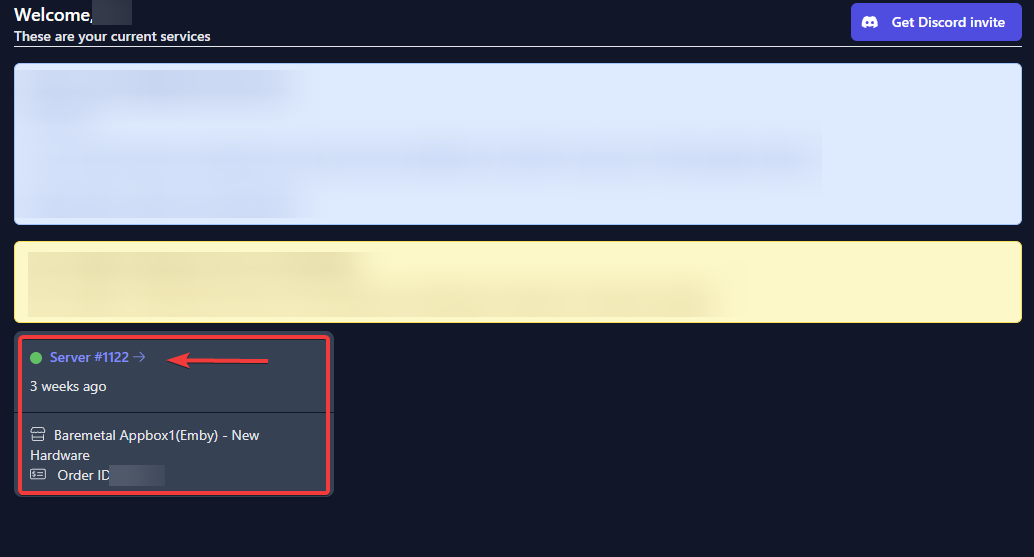
After clicking the appbox you will be presented with the Appbox view - Here you will find your Emby Appbox access url as well as the default admin username and password.
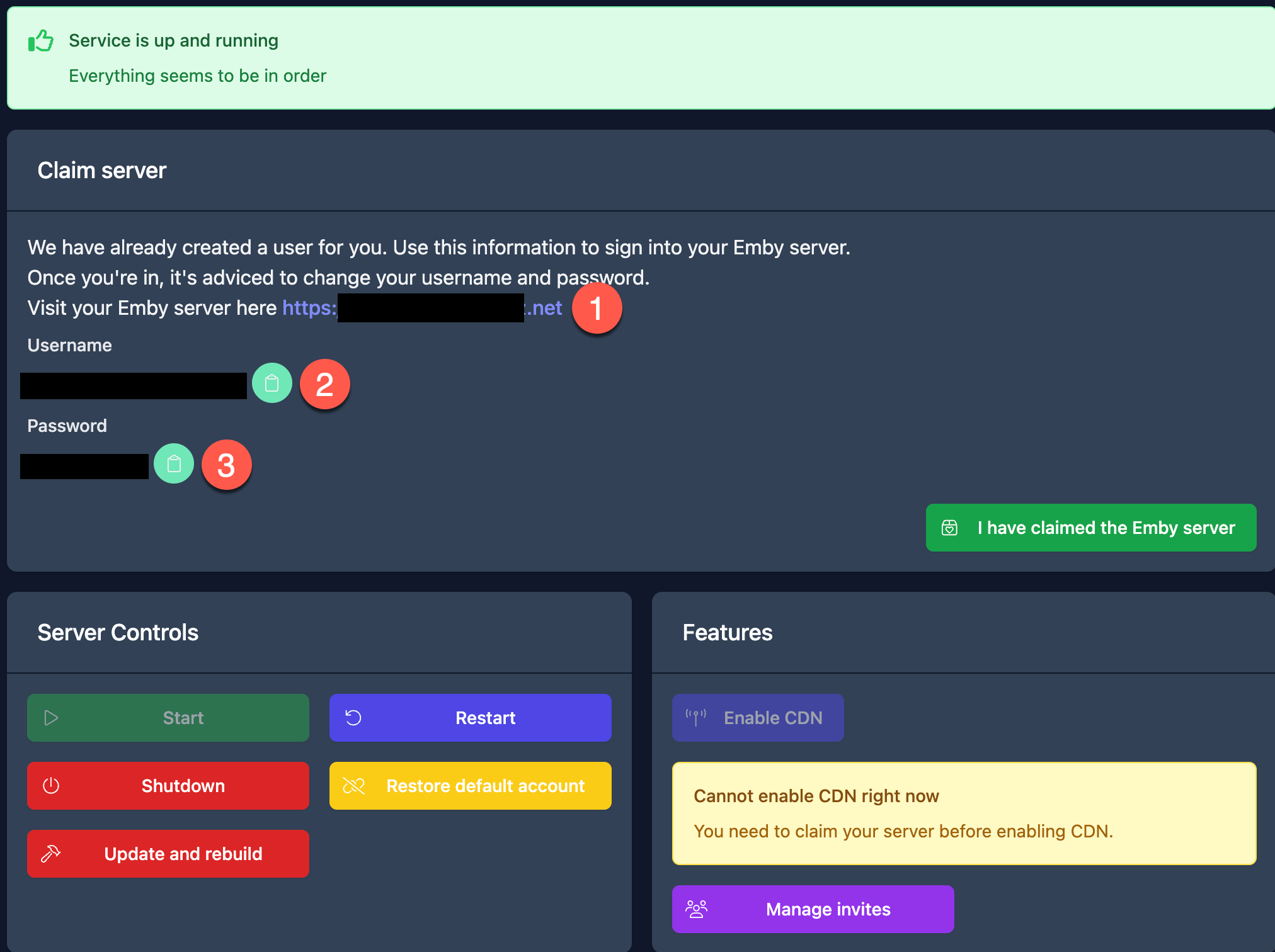
- This is the URL to access your Emby Appbox for the first time. Click to go to Emby
- This is the default admin username
- This is the default admin password
- Click the link in step 1, and then enter the username and password from step 2 and 3 to access the Emby Installation
¶ Making Emby easily accessible via Emby Connect
In order to easily reach your Emby Appbox from any device, you can link the default Admin user, or any other user you have created to your https://emby.media account
First, visit https://emby.media and create an account, then continue on with this guide.
After creating your Emby Media account, visit your Emby appbox and login using the information in Accessing The Emby Appbox
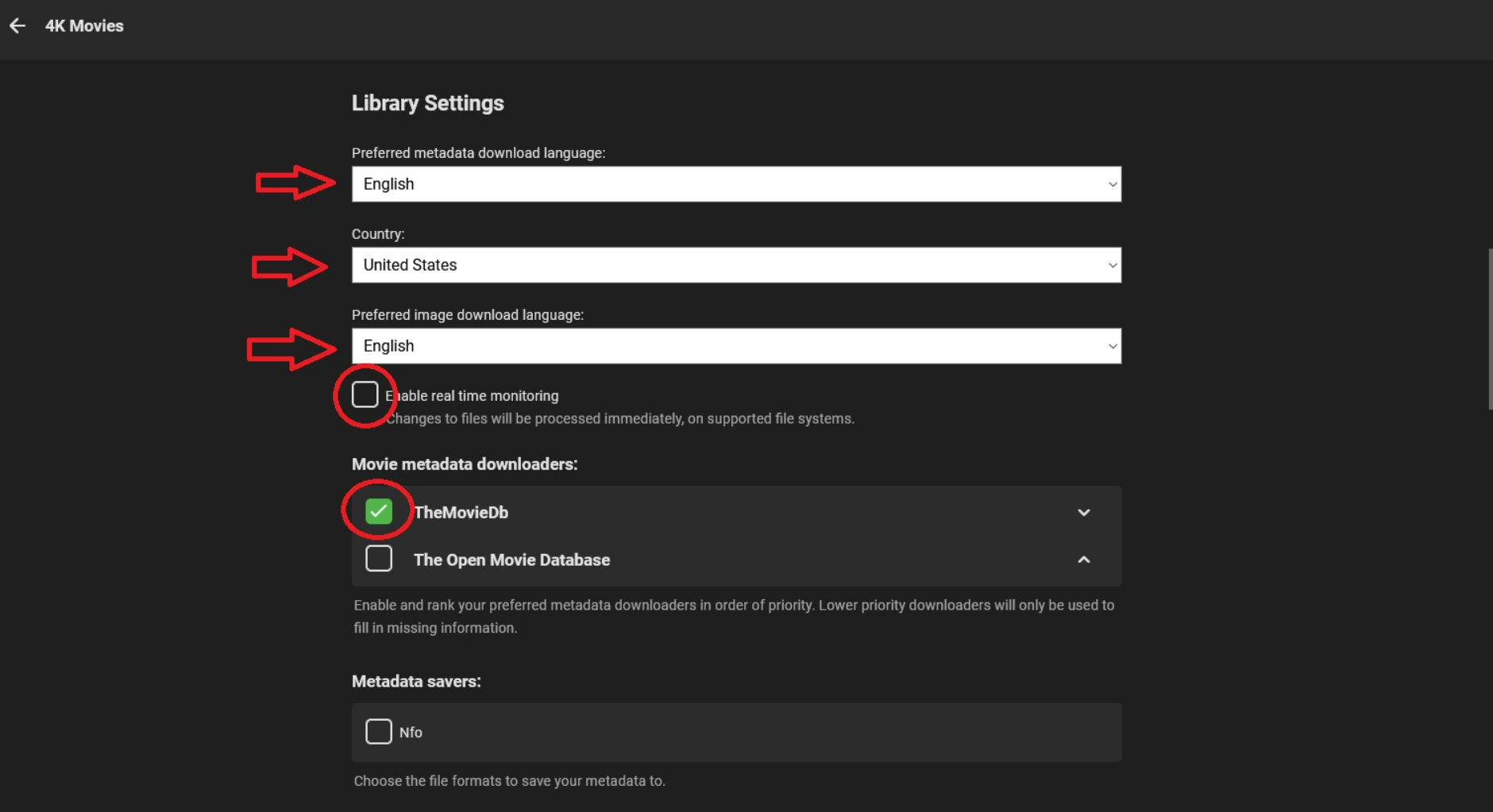
After visiting the Emby Access Url, click the settings cog in the top right corner to visit the Emby Settings page
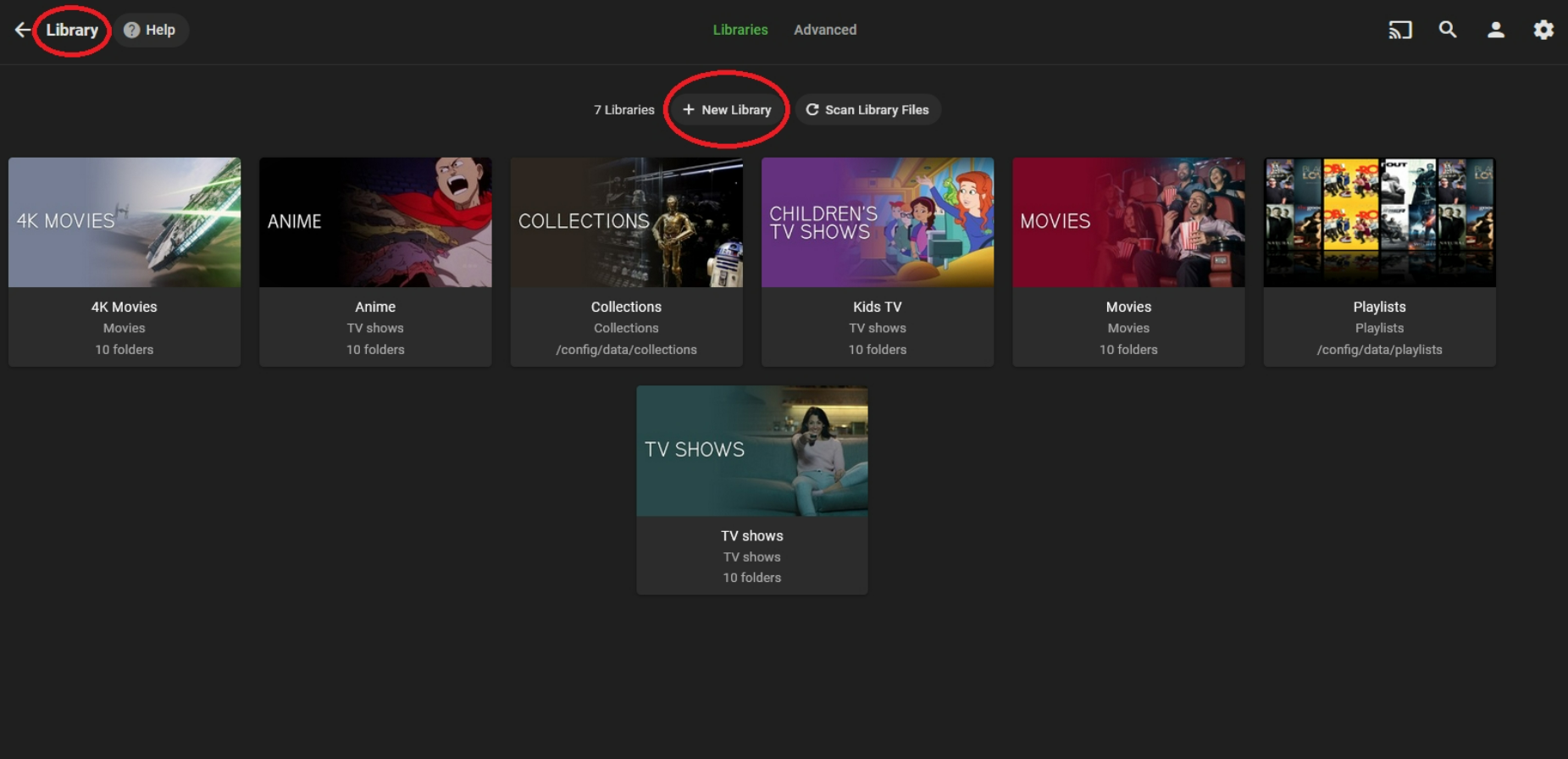
- In the navigation panel on the left side click "Users"
1.1 Click the user you want to connect to Emby Connect - In the "Emby connect e-mail address" enter the email address of the https://emby.media account you created
- Scroll down to the bottom of the page and hit "save"
Your Emby user is now linked to your Emby Media account. When opening an Emby app, login using your https://emby.media credentials to access your Appbox.
¶ Connecting to your Appbox directly(Not using Emby Connect)
If you would rather want to connect to your Appbox directly with the local Emby users, and not use https://emby.media accounts - You can do so using the URL and port 443 on your Emby Applications, example from setting up on a TV is shown below
Where the IP is shown, enter the address of your appbox as shown in (1) Emby Address
If the Emby client asks for a port, enter '443'
¶ Next, invite friends and family to your Emby appbox
Head over to the next section by clicking this link to hear about how you invite people to your Emby Appbox!
How to invite users to your Emby Appbox(Click here)
You might also want to read about Emby Premiere features, what they do and how to use them. Check out our article HERE for information